M5Canvas
M5Canvas is a powerful graphics widget that provides a drawable surface for creating custom graphics, animations, and visual effects in the user interface. It supports drawing operations, sprite management, and advanced graphics rendering.
UiFlow2 Example
draw basic shapes
Open the cores3_canvas_basic_example.m5f2 project in UiFlow2.
This example demonstrates how to create a canvas and draw basic shapes like rectangles, circles, and lines.
UiFlow2 Code Block:
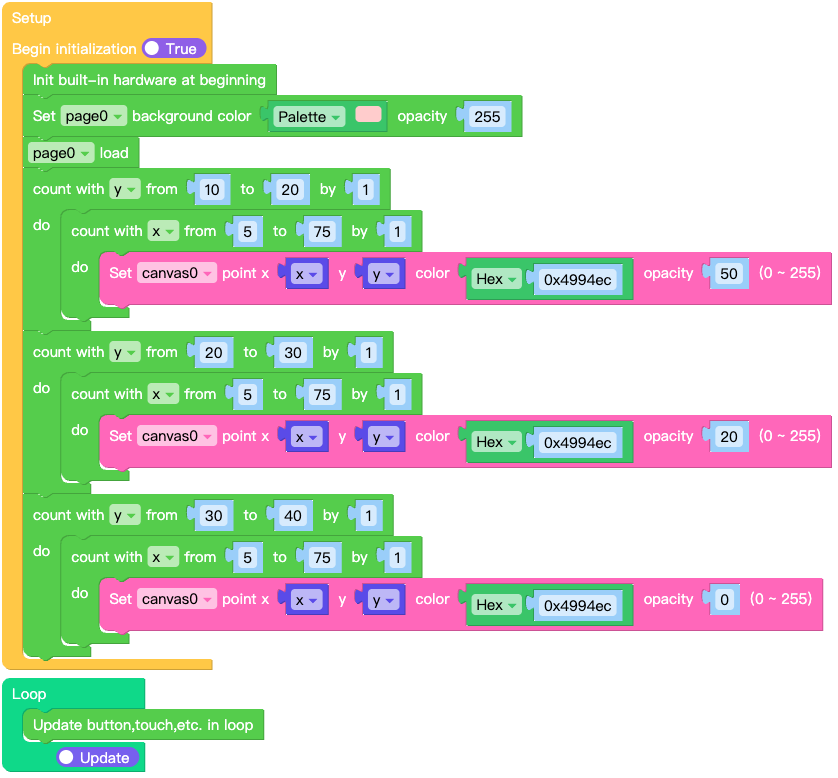
Example output:
A canvas with various colored shapes including rectangles, circles, and lines.
MicroPython Example
draw basic shapes
This example demonstrates how to create a canvas and draw basic shapes programmatically.
MicroPython Code Block:
 1# SPDX-FileCopyrightText: 2025 M5Stack Technology CO LTD
 2#
 3# SPDX-License-Identifier: MIT
 4
 5import os, sys, io
 6import M5
 7from M5 import *
 8import m5ui
 9import lvgl as lv
10
11
12page0 = None
13canvas0 = None
14
15
16y = None
17x = None
18
19
20def setup():
21    global page0, canvas0, x, y
22
23    M5.begin()
24    Widgets.setRotation(1)
25    m5ui.init()
26    page0 = m5ui.M5Page(bg_c=0xFFFFFF)
27    canvas0 = m5ui.M5Canvas(
28        x=120,
29        y=100,
30        w=80,
31        h=40,
32        color_format=lv.COLOR_FORMAT.ARGB8888,
33        bg_c=0x4994EC,
34        bg_opa=255,
35        parent=page0,
36    )
37
38    page0.set_bg_color(0xFFCCCC, 255, 0)
39    page0.screen_load()
40    for y in range(10, 21):
41        for x in range(5, 76):
42            canvas0.set_px(x, y, 0x4994EC, 50)
43    for y in range(20, 31):
44        for x in range(5, 76):
45            canvas0.set_px(x, y, 0x4994EC, 20)
46    for y in range(30, 41):
47        for x in range(5, 76):
48            canvas0.set_px(x, y, 0x4994EC, 0)
49
50
51def loop():
52    global page0, canvas0, x, y
53    M5.update()
54
55
56if __name__ == "__main__":
57    try:
58        setup()
59        while True:
60            loop()
61    except (Exception, KeyboardInterrupt) as e:
62        try:
63            m5ui.deinit()
64            from utility import print_error_msg
65
66            print_error_msg(e)
67        except ImportError:
68            print("please update to latest firmware")
Example output:
A canvas displaying various geometric shapes with different colors.
API
M5Canvas
- class m5ui.canvas.M5Canvas(*args, **kwargs)
Bases:
canvasCreate a canvas widget for drawing.
- Parameters:
x (int) – The x-coordinate of the canvas.
y (int) – The y-coordinate of the canvas.
w (int) – The width of the canvas.
h (int) – The height of the canvas.
color_format (lv.COLOR_FORMAT) – The color format of the canvas (default is ARGB8888).
bg_c (int) – The background color of the canvas in hexadecimal format (e.g., 0xRRGGBB).
bg_opa (int) – The opacity of the background (0-255).
parent (lv.obj) – The parent object of the canvas. If not specified, it will be set to the active screen.
- set_flag(flag, value)
Set a flag on the object. If
valueis True, the flag is added; if False, the flag is removed.- Parameters:
- Returns:
None
UiFlow2 Code Block:

MicroPython Code Block:
canvas_0.set_flag(lv.obj.FLAG.HIDDEN, True)
- toggle_flag(flag)
Toggle a flag on the object. If the flag is set, it is removed; if not set, it is added.
- Parameters:
flag (int) – The flag to toggle.
- Returns:
None
UiFlow2 Code Block:

MicroPython Code Block:
canvas_0.toggle_flag(lv.obj.FLAG.HIDDEN)
- set_pos(x, y)
Set the position of the canvas.
- Parameters:
- Returns:
None
UiFlow2 Code Block:

MicroPython Code Block:
canvas_0.set_pos(100, 100)
- set_x(x)
Set the x-coordinate of the canvas.
- Parameters:
x (int) – The x-coordinate of the canvas.
- Returns:
None
UiFlow2 Code Block:
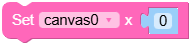
MicroPython Code Block:
canvas_0.set_x(100)
- set_y(y)
Set the y-coordinate of the canvas.
- Parameters:
y (int) – The y-coordinate of the canvas.
- Returns:
None
UiFlow2 Code Block:
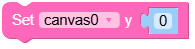
MicroPython Code Block:
canvas_0.set_y(100)
- align_to(obj, align, x, y)
Align the canvas to another object.
- Parameters:
- Returns:
None
UiFlow2 Code Block:

MicroPython Code Block:
canvas_0.align_to(page_0, lv.ALIGN.CENTER, 0, 0)
- set_size(width, height)
Set the size of the canvas.
- Parameters:
- Returns:
None
UiFlow2 Code Block:

MicroPython Code Block:
canvas_0.set_size(200, 100)
- set_width(width)
Set the width of the canvas.
- Parameters:
width (int) – The width of the canvas.
- Returns:
None
UiFlow2 Code Block:

MicroPython Code Block:
canvas_0.set_width(200)
- set_height(height)
Set the height of the canvas.
- Parameters:
height (int) – The height of the canvas.
- Returns:
None
UiFlow2 Code Block:

MicroPython Code Block:
canvas_0.set_height(100)
- get_width()
Get the width of the canvas.
- Returns:
The width of the canvas.
- Return type:
UiFlow2 Code Block:

MicroPython Code Block:
width = canvas_0.get_width()
- get_height()
Get the height of the canvas.
- Returns:
The height of the canvas.
- Return type:
UiFlow2 Code Block:

MicroPython Code Block:
height = canvas_0.get_height()
- fill_bg(color, opa)
Fill the canvas background with the specified color and opacity.
- Parameters:
UiFlow2 Code Block:

MicroPython Code Block:
canvas_0.fill_bg(0x001122, 255)
- set_px(x, y, color, opa)
Set a pixel at (x, y) with the specified color and opacity.
- Parameters:
UiFlow2 Code Block:

MicroPython Code Block:
canvas_0.set_px(100, 100, 0xFF0000, 255)
- get_px_color(x, y)
Get the color of the pixel at (x, y).
- Parameters:
- Returns:
The color of the pixel in hexadecimal format (e.g., 0xRRGGBB).
- Return type:
UiFlow2 Code Block:

MicroPython Code Block:
color = canvas_0.get_px_color(100, 100)
print(hex(color))  # Prints the color in hexadecimal format
- get_px_opa(x, y)
Get the opacity of the pixel at (x, y).
- Parameters:
- Returns:
The opacity of the pixel (0-255).
- Return type:
UiFlow2 Code Block:

MicroPython Code Block:
- draw_arc(x, y, r, color=0, opa=lvgl.OPA.COVER, width=1, start_angle=0, end_angle=90)
Draw an arc on the canvas.
- Parameters:
x (int) – The x-coordinate of the center of the arc.
y (int) – The y-coordinate of the center of the arc.
r (int) – The radius of the arc.
color (int) – The color of the arc in hexadecimal format (e.g., 0xRRGGBB).
opa (int) – The opacity of the arc (0-255).
width (int) – The width of the arc line.
start_angle (int) – The starting angle of the arc in degrees.
end_angle (int) – The ending angle of the arc in degrees.
UiFlow2 Code Block:
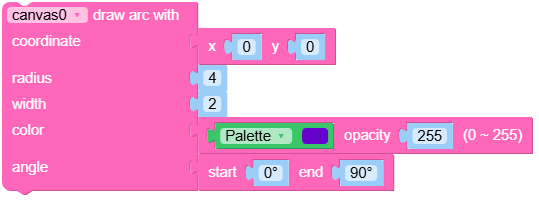
MicroPython Code Block:
canvas_0.draw_arc(100, 100, 50, 0xFF0000, 255, 2, 0, 180)
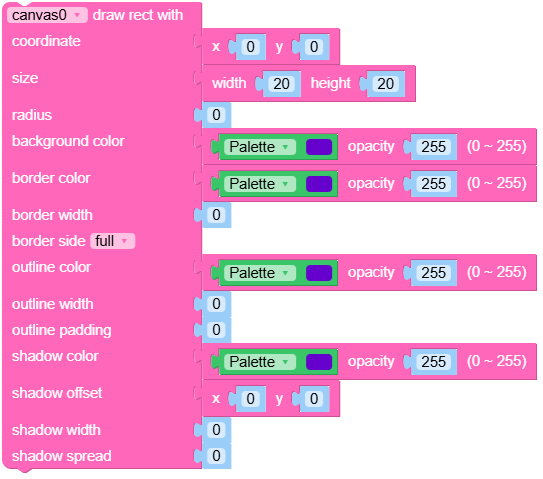
- draw_rect(x, y, w, h, radius=0, bg_c=16777215, bg_opa=lvgl.OPA.COVER, border_c=16777215, border_opa=lvgl.OPA.COVER, border_w=0, border_side=lvgl.BORDER_SIDE.FULL, outline_c=0, outline_opa=lvgl.OPA.COVER, outline_w=0, outline_pad=0, shadow_c=0, shadow_opa=lvgl.OPA.COVER, shadow_w=0, shadow_offset_x=0, shadow_offset_y=0, shadow_spread=0)
Draw a rectangle on the canvas.
- Parameters:
x (int) – The x-coordinate of the rectangle.
y (int) – The y-coordinate of the rectangle.
w (int) – The width of the rectangle.
h (int) – The height of the rectangle.
radius (int) – The corner radius of the rectangle.
bg_c (int) – The background color of the rectangle in hexadecimal format (e.g., 0xRRGGBB).
bg_opa (int) – The opacity of the background (0-255).
border_c (int) – The border color of the rectangle in hexadecimal format (e.g., 0xRRGGBB).
border_opa (int) – The opacity of the border (0-255).
border_w (int) – The width of the border.
border_side (int) – The side of the border to draw (e.g., lv.BORDER_SIDE.FULL).
outline_c (int) – The outline color of the rectangle in hexadecimal format (e.g., 0xRRGGBB).
outline_opa (int) – The opacity of the outline (0-255).
outline_w (int) – The width of the outline.
outline_pad (int) – The padding of the outline.
shadow_c (int) – The shadow color of the rectangle in hexadecimal format (e.g., 0xRRGGBB).
shadow_opa (int) – The opacity of the shadow (0-255).
shadow_w (int) – The width of the shadow.
shadow_offset_x (int) – The horizontal offset of the shadow.
shadow_offset_y (int) – The vertical offset of the shadow.
shadow_spread (int) – The spread of the shadow.
UiFlow2 Code Block:
MicroPython Code Block:
canvas_0.draw_rect(10, 10, 100, 50, radius=5, bg_c=0xFF0000,
                   bg_opa=255, border_c=0x00FF00, border_opa=255,
                   border_w=2, outline_c=0x0000FF, outline_opa=255,
                   outline_w=1, shadow_c=0x000000, shadow_opa=128,
                   shadow_w=5, shadow_offset_x=2, shadow_offset_y= 2,
                   shadow_spread=0)
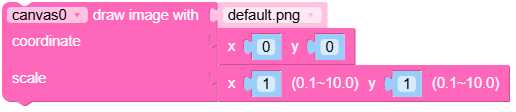
- draw_image(img_src, x=0, y=0, rotation=0, scale_x=1.0, scale_y=1.0, skew_x=0, skew_y=0)
Draw an image at the specified coordinates.
- Parameters:
img_src (str) – The source of the image (e.g., a file path or an image object).
x (int) – The x-coordinate where the image will be drawn.
y (int) – The y-coordinate where the image will be drawn.
rotation (int) – The rotation angle of the image in degrees.
scale_x (float) – The horizontal scaling factor of the image.
scale_y (float) – The vertical scaling factor of the image.
skew_x (int) – The horizontal skew angle of the image in degrees.
skew_y (int) – The vertical skew angle of the image in degrees.
UiFlow2 Code Block:
MicroPython Code Block:
canvas_0.draw_image("path/to/image.png", x=10, y=20, rotation=0,
                    scale_x=1.0, scale_y=1.0, skew_x=0, skew_y=0)
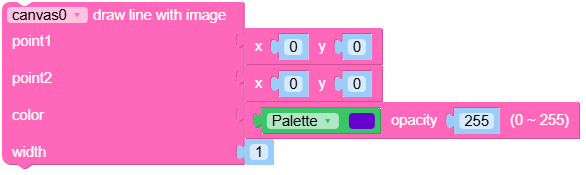
- draw_line(x1, y1, x2, y2, color=0, opa=lvgl.OPA.COVER, width=1)
Draw a line from (x1, y1) to (x2, y2).
- Parameters:
x1 (int) – The x-coordinate of the start point of the line.
y1 (int) – The y-coordinate of the start point of the line.
x2 (int) – The x-coordinate of the end point of the line.
y2 (int) – The y-coordinate of the end point of the line.
color (int) – The color of the line in hexadecimal format (e.g., 0xRRGGBB).
opa (int) – The opacity of the line (0-255).
width (int) – The width of the line.
UiFlow2 Code Block:
MicroPython Code Block:
canvas_0.draw_line(10, 10, 100, 100, color=0xFF0000, opa=255, width=2)
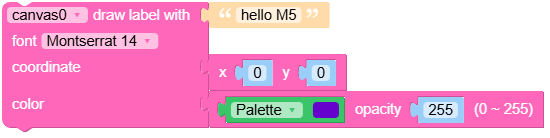
- draw_label(txt, x=0, y=0, font=lvgl.font_montserrat_14, color=0, opa=lvgl.OPA.COVER)
Draw a label with the specified text at the given coordinates.
- Parameters:
txt (str) – The text to be displayed.
x (int) – The x-coordinate where the label will be drawn.
y (int) – The y-coordinate where the label will be drawn.
font – The font to be used for the label (default is lv.font_montserrat_14).
color (int) – The color of the text in hexadecimal format (e.g., 0xRRGGBB).
opa (int) – The opacity of the text (0-255).
UiFlow2 Code Block:
MicroPython Code Block:
canvas_0.draw_label("Hello, World!", x=10, y=20, font=lv.font_montserrat_14,
                    color=0xFFFFFF, opa=255)
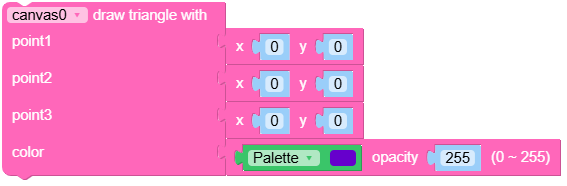
- draw_triangle(x1, y1, x2, y2, x3, y3, bg_c=16777215, bg_opa=lvgl.OPA.COVER)
Draw a triangle with the specified vertices.
- Parameters:
x1 (int) – The x-coordinate of the first vertex.
y1 (int) – The y-coordinate of the first vertex.
x2 (int) – The x-coordinate of the second vertex.
y2 (int) – The y-coordinate of the second vertex.
x3 (int) – The x-coordinate of the third vertex.
y3 (int) – The y-coordinate of the third vertex.
bg_c (int) – The background color of the triangle in hexadecimal format (e.g., 0xRRGGBB).
bg_opa (int) – The opacity of the triangle (0-255).
UiFlow2 Code Block:
MicroPython Code Block:
canvas_0.draw_triangle(10, 10, 50, 10, 30, 40, bg_c=0xFF0000, bg_opa=255)