M5Table
M5Table 由包含文本的行、列和单元格构成。
UiFlow2 应用示例
表格基本使用示例
在 UiFlow2 中打开 cores3_m5ui_table_example.m5f2 项目。
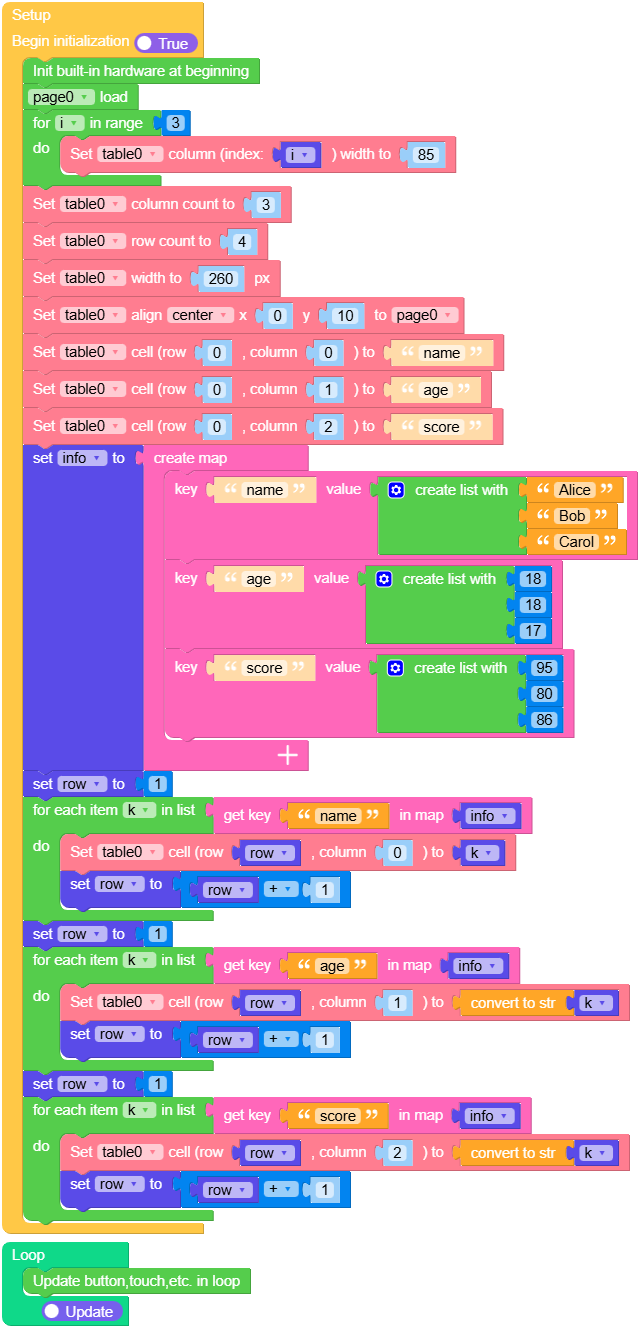
此示例演示了如何创建一个包含学生信息的表格,包括姓名、年龄和分数。该表格显示三名学生的数据:Alice (18, 95)、Bob (18, 80) 和 Carol (17, 86)。
UiFlow2 代码块:
示例输出:
无。
MicroPython 示例
表格基本使用示例
此示例演示了如何创建一个包含学生信息的表格,包括姓名、年龄和分数。该表格显示三名学生的数据:Alice (18, 95)、Bob (18, 80) 和 Carol (17, 86)。
MicroPython 代码块:
 1# SPDX-FileCopyrightText: 2025 M5Stack Technology CO LTD
 2#
 3# SPDX-License-Identifier: MIT
 4
 5import os, sys, io
 6import M5
 7from M5 import *
 8import m5ui
 9import lvgl as lv
10
11
12page0 = None
13table0 = None
14table = None
15i = None
16info = None
17row = None
18k = None
19
20
21def setup():
22    global page0, table0, table, i, info, row, k
23
24    M5.begin()
25    Widgets.setRotation(1)
26    m5ui.init()
27    page0 = m5ui.M5Page(bg_c=0xFFFFFF)
28    table0 = m5ui.M5Table(x=10, y=35, w=300, h=180, row_cnt=3, col_cnt=3, parent=page0)
29    table = m5ui.M5Label(
30        "M5UI Table Example",
31        x=35,
32        y=2,
33        text_c=0x0000FF,
34        bg_c=0x000000,
35        bg_opa=0,
36        font=lv.font_montserrat_24,
37        parent=page0,
38    )
39
40    page0.screen_load()
41    for i in range(3):
42        table0.set_column_width(i, 85)
43
44    table0.set_column_count(3)
45    table0.set_row_count(4)
46    table0.set_width(260)
47    table0.align_to(page0, lv.ALIGN.CENTER, 0, 10)
48    table0.set_cell_value(0, 0, "name")
49    table0.set_cell_value(0, 1, "age")
50    table0.set_cell_value(0, 2, "score")
51    info = {"name": ["Alice", "Bob", "Carol"], "age": [18, 18, 17], "score": [95, 80, 86]}
52    row = 1
53    for k in info["name"]:
54        table0.set_cell_value(row, 0, k)
55        row = row + 1
56    row = 1
57    for k in info["age"]:
58        table0.set_cell_value(row, 1, str(k))
59        row = row + 1
60    row = 1
61    for k in info["score"]:
62        table0.set_cell_value(row, 2, str(k))
63        row = row + 1
64
65
66def loop():
67    global page0, table0, table, i, info, row, k
68    M5.update()
69
70
71if __name__ == "__main__":
72    try:
73        setup()
74        while True:
75            loop()
76    except (Exception, KeyboardInterrupt) as e:
77        try:
78            m5ui.deinit()
79            from utility import print_error_msg
80
81            print_error_msg(e)
82        except ImportError:
83            print("please update to latest firmware")
示例输出:
无。
API 应用
M5Table
- class m5ui.table.M5Table(*args, **kwargs)
基类:
table创建表格对象。
- 参数:
UiFlow2 代码块:
None
MicroPython 代码块:
from m5ui import M5Table
import lvgl as lv

m5ui.init()
table_0 = M5Table(x=30, y=20, w=200, h=150, row_cnt=2, col_cnt=2)
- set_cell_value(row, col, value)
设置单元格的值。
如果需要,将自动添加新行/列。
- 参数:
- 返回:
None
UiFlow2 代码块:

MicroPython 代码块:
table_0.set_cell_value(row, col, value)
- get_cell_value(row, col)
获取单元格的值。
UiFlow2 代码块:

MicroPython 代码块:
table_0.get_cell_value()
- set_row_count(row_cnt)
设置行数。
- 参数:
row_cnt (int) – 行数。
- 返回:
None
UiFlow2 代码块:

MicroPython 代码块:
table_0.set_row_count(row_cnt)
- set_column_count(col_cnt)
设置列数。
- 参数:
col_cnt (int) – 列数。
- 返回:
None
UiFlow2 代码块:

MicroPython 代码块:
table_0.set_column_count(col_cnt)
- get_row_count()
获取行数。
- 返回:
行数。
- 返回类型:
UiFlow2 代码块:

MicroPython 代码块:
row_cnt = table_0.get_row_count()
- get_column_count()
获取列数。
- 返回:
列数。
- 返回类型:
UiFlow2 代码块:

MicroPython 代码块:
col_cnt = table_0.get_column_count()
- set_column_width(col, width)
设置列的宽度。
UiFlow2 代码块:

MicroPython 代码块:
table_0.set_column_width(col, width)
- set_pos(x, y)
设置 Table 的位置。
- 参数 int x:
表格的 x 位置。
- 参数 int y:
表格的 y 位置。
- return:
None
UiFlow2 代码块:

MicroPython 代码块:
table_0.set_pos(x, y)
- set_x(x)
设置 Table 的 x 坐标位置。
- 参数:
x (int) – 表格的 x 位置。
- 返回:
None
UiFlow2 代码块:

MicroPython 代码块:
table_0.set_x(x)
- set_y(y)
设置 Table 的 y 坐标位置。
- 参数:
y (int) – 表格的 y 位置。
- 返回:
None
UiFlow2 代码块:

MicroPython 代码块:
table_0.set_y(y)
- get_y()
获取 Table 的 y 坐标位置。
- 返回:
表格的 y 位置。
- 返回类型:
UiFlow2 代码块:

MicroPython 代码块:
y = table_0.get_y()
- set_size(width, height)
设置 Table 的大小。
UiFlow2 代码块:

MicroPython 代码块:
table_0.set_size(width, height)
- set_width(width)
设置 Table 的宽度。
- 参数:
width (int) – 表格的宽度。
- 返回:
None
UiFlow2 代码块:

MicroPython 代码块:
table_0.set_width(width)
- get_width()
获取 Table 的宽度。
- 返回:
表格的宽度。
- 返回类型:
UiFlow2 代码块:

MicroPython 代码块:
width = table_0.get_width()
- set_height(height)
设置 Table 的高度。
- 参数:
height (int) – 表格的高度。
- 返回:
None
UiFlow2 代码块:

MicroPython 代码块:
table_0.set_height(height)
- get_height()
获取 Table 的高度。
- 返回:
表格的高度。
- 返回类型:
UiFlow2 代码块:

MicroPython 代码块:
height = table_0.get_height()
- align_to(obj, align, x, y)
相对于另一个对象对齐表格。
- 参数:
- 返回:
None
UiFlow2 代码块:

MicroPython 代码块:
table_0.align_to(page0, lv.ALIGN.CENTER, 0, 0)
- lv.ALIGN
用于定位对象的对齐选项。
lv.ALIGN.DEFAULT
lv.ALIGN.TOP_LEFT
lv.ALIGN.TOP_MID
lv.ALIGN.TOP_RIGHT
lv.ALIGN.BOTTOM_LEFT
lv.ALIGN.BOTTOM_MID
lv.ALIGN.BOTTOM_RIGHT
lv.ALIGN.LEFT_MID
lv.ALIGN.RIGHT_MID
lv.ALIGN.CENTER
lv.ALIGN.OUT_TOP_LEFT
lv.ALIGN.OUT_TOP_MID
lv.ALIGN.OUT_TOP_RIGHT
lv.ALIGN.OUT_BOTTOM_LEFT
lv.ALIGN.OUT_BOTTOM_MID
lv.ALIGN.OUT_BOTTOM_RIGHT
lv.ALIGN.OUT_LEFT_TOP
lv.ALIGN.OUT_LEFT_MID
lv.ALIGN.OUT_LEFT_BOTTOM
lv.ALIGN.OUT_RIGHT_TOP
lv.ALIGN.OUT_RIGHT_MID
lv.ALIGN.OUT_RIGHT_BOTTOM