mouse
usb 设备鼠标
备注
当前模块只适用于 CoreS3 主机
Micropython 案例
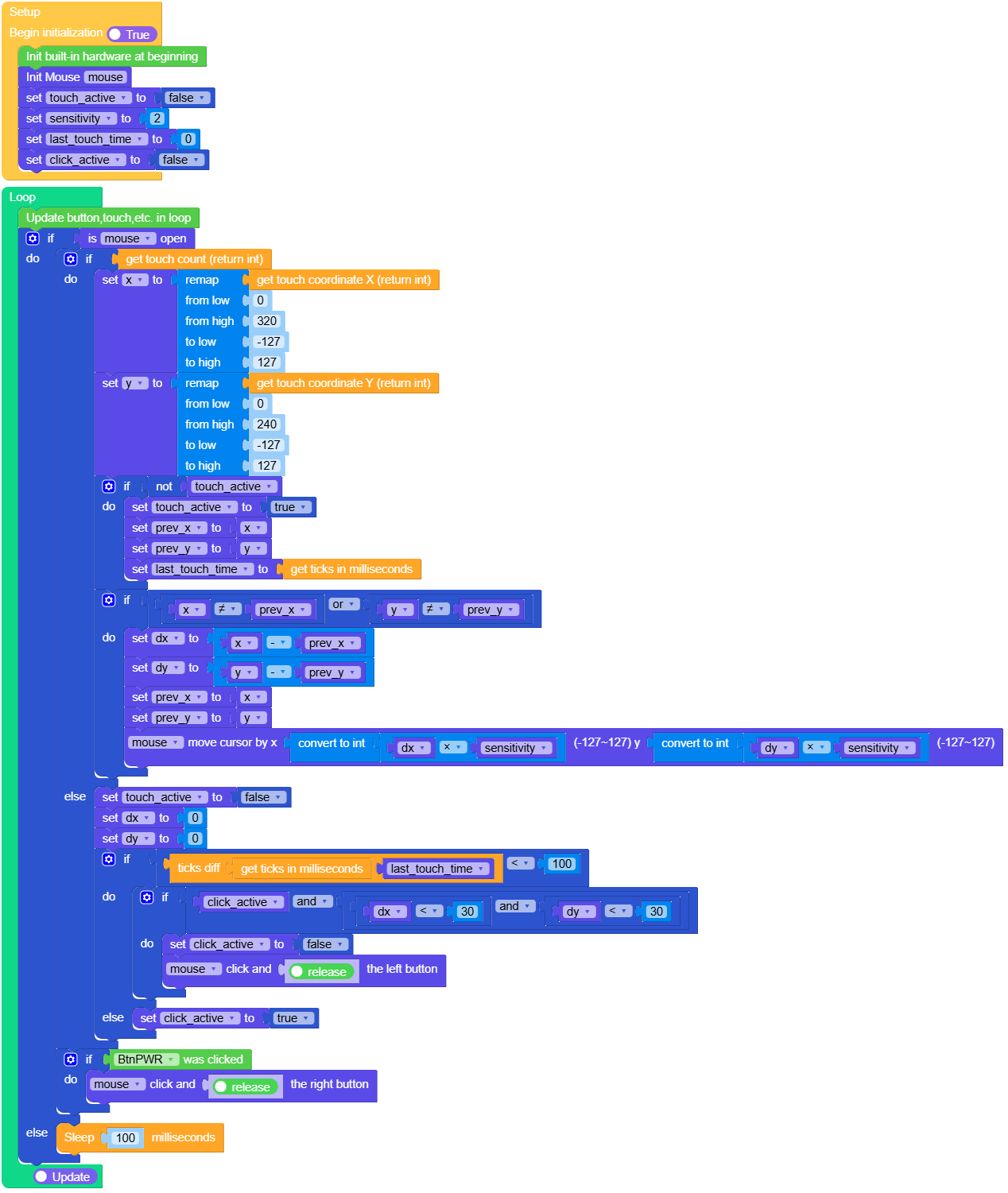
USB 鼠标
  1# SPDX-FileCopyrightText: 2025 M5Stack Technology CO LTD
  2#
  3# SPDX-License-Identifier: MIT
  4import os, sys, io
  5import M5
  6from M5 import *
  7from usb.device.mouse import Mouse
  8import time
  9import m5utils
 10
 11
 12label0 = None
 13mouse = None
 14touch_active = None
 15sensitivity = None
 16x = None
 17last_touch_time = None
 18y = None
 19dx = None
 20click_active = None
 21dy = None
 22prev_x = None
 23prev_y = None
 24
 25
 26def setup():
 27    global \
 28        label0, \
 29        mouse, \
 30        touch_active, \
 31        sensitivity, \
 32        x, \
 33        last_touch_time, \
 34        y, \
 35        dx, \
 36        click_active, \
 37        dy, \
 38        prev_x, \
 39        prev_y
 40    M5.begin()
 41    Widgets.fillScreen(0x222222)
 42    label0 = Widgets.Label("USB Mouse", 91, 6, 1.0, 0x158EE6, 0x222222, Widgets.FONTS.DejaVu24)
 43    mouse = Mouse()
 44    touch_active = False
 45    sensitivity = 2
 46    last_touch_time = 0
 47    click_active = False
 48
 49
 50def loop():
 51    global \
 52        label0, \
 53        mouse, \
 54        touch_active, \
 55        sensitivity, \
 56        x, \
 57        last_touch_time, \
 58        y, \
 59        dx, \
 60        click_active, \
 61        dy, \
 62        prev_x, \
 63        prev_y
 64    M5.update()
 65    if mouse.is_open():
 66        if M5.Touch.getCount():
 67            x = m5utils.remap(M5.Touch.getX(), 0, 320, -127, 127)
 68            y = m5utils.remap(M5.Touch.getY(), 0, 240, -127, 127)
 69            if not touch_active:
 70                touch_active = True
 71                prev_x = x
 72                prev_y = y
 73                last_touch_time = time.ticks_ms()
 74            if x != prev_x or y != prev_y:
 75                dx = x - prev_x
 76                dy = y - prev_y
 77                prev_x = x
 78                prev_y = y
 79                mouse.move(int(dx * sensitivity), int(dy * sensitivity))
 80        else:
 81            touch_active = False
 82            dx = 0
 83            dy = 0
 84            if (time.ticks_diff((time.ticks_ms()), last_touch_time)) < 100:
 85                if click_active and dx < 30 and dy < 30:
 86                    click_active = False
 87                    mouse.click_left(True)
 88            else:
 89                click_active = True
 90        if BtnPWR.wasClicked():
 91            mouse.click_right(True)
 92    else:
 93        time.sleep_ms(100)
 94
 95
 96if __name__ == "__main__":
 97    try:
 98        setup()
 99        while True:
100            loop()
101    except (Exception, KeyboardInterrupt) as e:
102        try:
103            from utility import print_error_msg
104
105            print_error_msg(e)
106        except ImportError:
107            print("please update to latest firmware")
UIFlow2.0 案例
USB 鼠标
class Mouse
- class usb.device.mouse.Mouse
创建 Mouse 对象
UIFlow2.0

- Mouse.set_axes(x: int = 0, y: int = 0)
设置光标位置
x水平移动,范围:-127 到 127。小于 0 的值将光标向左移动,大于 0 的值将光标向右移动。y垂直移动,范围:-127 到 127。小于 0 的值会使光标向上滚动,大于 0 的值会使光标向下滚动。
- Note:
需要调用 Mouse.send_report() 后生效
UIFlow2.0

- Mouse.set_wheel(w: int = 0)
设置鼠标滚轮值
w滚轮值,范围:-127 到 127。小于 0 的值使滚轮向下滚动,大于 0 的值使滚轮向上滚动。
- Note:
需要调用 Mouse.send_report() 后生效
UIFlow2.0

- Mouse.set_buttons(left: bool = False, right: bool = False, middle: bool = False)
设置鼠标按钮状态
leftTrue 为按下左键rightTrue 为按下右键middleTrue 为按下滚轮
- Note:
需要调用 Mouse.send_report() 后生效
需要调用 Mouse.send_report() 后生效
set_buttons(left=True)  # press
send_report()
set_buttons(left=False) # release
send_report()
UIFlow2.0
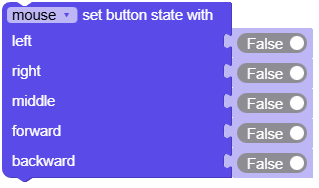
- Mouse.send_report()
发送鼠标状态报告。
UIFlow2.0

- Mouse.move(x: int = 0, y: int = 0)
移动光标
x水平移动,范围:-127 到 127。小于 0 的值将光标向左移动,大于 0 的值将光标向右移动。y垂直移动,范围:-127 到 127。小于 0 的值使光标向上移动,大于 0 的值使光标向下移动。
UIFlow2.0

- Mouse.click_left(release: bool = True)
单击左键
release设置为 True 可在按下鼠标左键后释放该左键,设置为 False 则不会释放该左键。
UIFlow2.0

- Mouse.click_right(release: bool = True)
单击右键
release设置为 True 可在按下鼠标右键后释放该右键,设置为 False 则不会释放该右键。
UIFlow2.0

- Mouse.click_middle(release: bool = True)
单击滚轮
release设置为 True 可在按下后释放左中间按钮,设置为 False 则不会释放。
UIFlow2.0

- Mouse.click_forawrd()
单击前进按键
release设置为 True 可在按下左前进按钮后释放该按钮,设置为 False 则不会释放该按钮。
UIFlow2.0

- Mouse.click_backward()
单击后退按键
release设置为 True 可在按下后释放左后退按钮,设置为 False 则不会释放。
UIFlow2.0

