Display
A lcd display library
M5 Series Display Libraries
1. Display
A low-level graphics library providing basic screen drawing, text, lines, and color management.
Can be used independently, suitable for scenarios that only require drawing graphics or text.
2. M5Widgets
A basic UI widget library providing labels, image displays, and other UI controls.
Built on top of M5GFX.
Suitable for simple interactive UI elements.
3. M5UI
A high-level UI framework based on LVGL.
Provides page management, multi-widget layouts, and unified event handling.
Usage Tips
⚠️ Do not mix M5GFX, M5Widgets, and M5UI simultaneously, as it may cause rendering issues or event conflicts.
For graphics-only drawing → use M5GFX.
For simple interactive widgets → use M5Widgets.
For multi-page UI → use M5UI.
UiFlow2 Example
Basic Drawing
Open the cores3_draw_test_example.m5f2 project in UiFlow2.
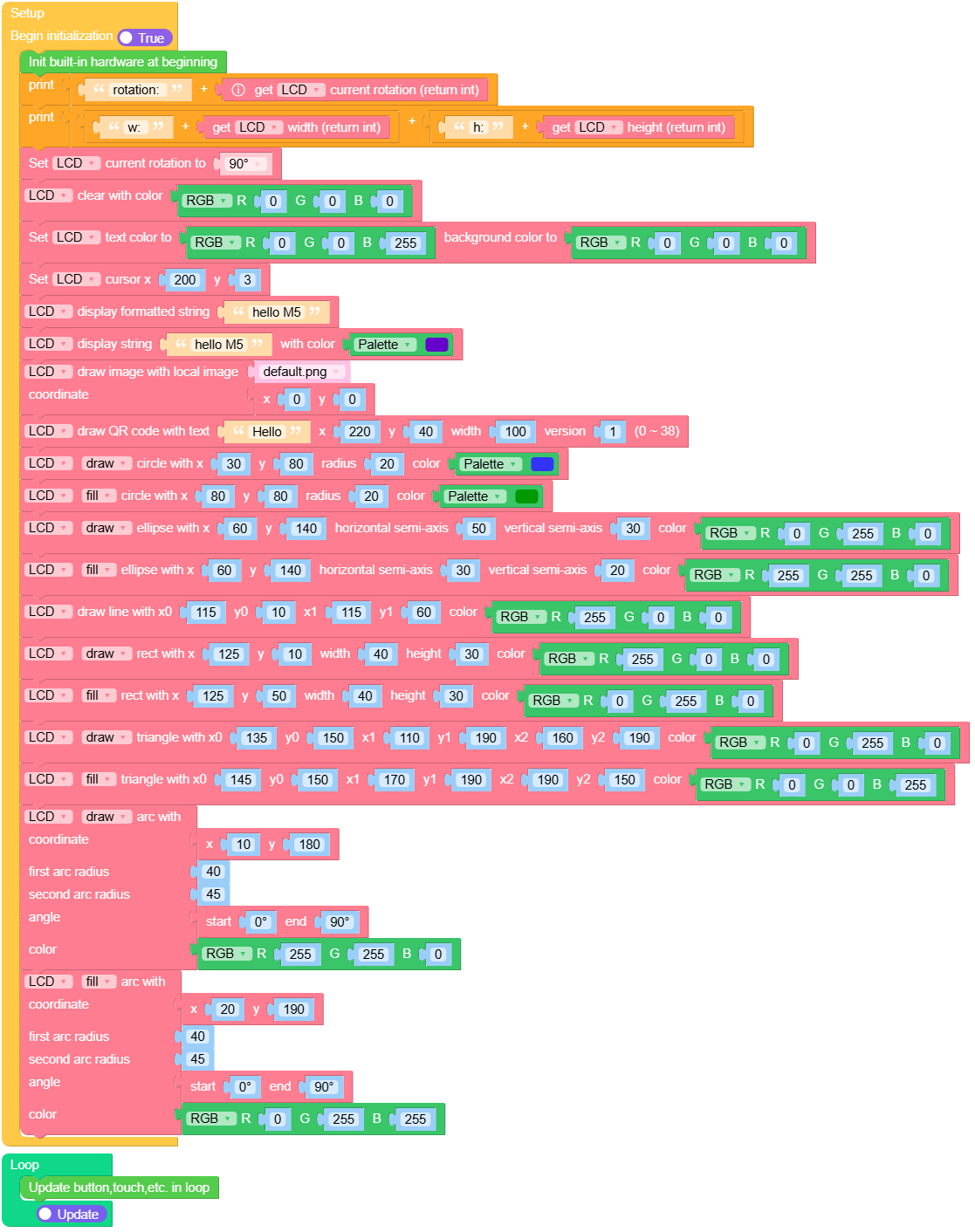
This example demonstrates basic drawing functions of Display, including text, images, QR code, and various shapes.
UiFlow2 Code Block:
Example output:
None
Canvas Drawing
Open the cores3_display_canvas_example.m5f2 project in UiFlow2.
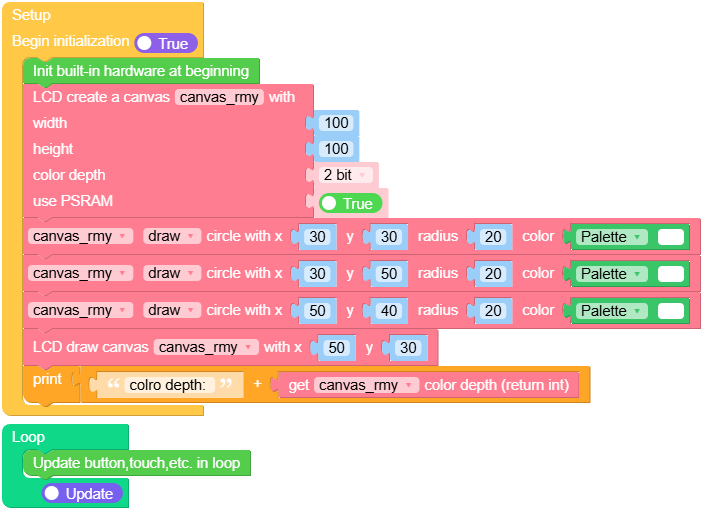
This example demonstrates how to create and use a canvas for drawing. It creates a canvas with 2-bit color depth, draws circles on it, and then pushes the canvas to the display.
UiFlow2 Code Block:
Example output:
None
MicroPython Example
Basic Drawing
This example demonstrates basic drawing functions of Display, including text, images, QR code, and various shapes.
MicroPython Code Block:
 1# SPDX-FileCopyrightText: 2026 M5Stack Technology CO LTD
 2#
 3# SPDX-License-Identifier: MIT
 4import os, sys, io
 5import M5
 6from M5 import *
 7
 8
 9def setup():
10    M5.begin()
11    Widgets.setRotation(1)
12    Widgets.fillScreen(0x222222)
13    print((str("rotation: ") + str((M5.Lcd.getRotation()))))
14    print((str((str("w: ") + str((M5.Lcd.width())))) + str((str("h:") + str((M5.Lcd.height()))))))
15    M5.Lcd.setRotation(1)
16    M5.Lcd.clear(0x000000)
17    M5.Lcd.setTextColor(0x0000FF, 0x000000)
18    M5.Lcd.setCursor(200, 3)
19    M5.Lcd.printf("hello M5")
20    M5.Lcd.print("hello M5", 0x6600CC)
21    M5.Lcd.drawImage("/flash/res/img/default.png", 0, 0)
22    M5.Lcd.drawQR("Hello", 220, 40, 100, 1)
23    M5.Lcd.drawCircle(30, 80, 20, 0x3333FF)
24    M5.Lcd.fillCircle(80, 80, 20, 0x009900)
25    M5.Lcd.drawEllipse(60, 140, 50, 30, 0x00FF00)
26    M5.Lcd.fillEllipse(60, 140, 30, 20, 0xFFFF00)
27    M5.Lcd.drawLine(115, 10, 115, 60, 0xFF0000)
28    M5.Lcd.drawRect(125, 10, 40, 30, 0xFF0000)
29    M5.Lcd.fillRect(125, 50, 40, 30, 0x00FF00)
30    M5.Lcd.drawTriangle(135, 150, 110, 190, 160, 190, 0x00FF00)
31    M5.Lcd.fillTriangle(145, 150, 170, 190, 190, 150, 0x0000FF)
32    M5.Lcd.drawArc(10, 180, 40, 45, 0, 90, 0xFFFF00)
33    M5.Lcd.fillArc(20, 190, 40, 45, 0, 90, 0x00FFFF)
34
35
36def loop():
37    M5.update()
38
39
40if __name__ == "__main__":
41    try:
42        setup()
43        while True:
44            loop()
45    except (Exception, KeyboardInterrupt) as e:
46        try:
47            from utility import print_error_msg
48
49            print_error_msg(e)
50        except ImportError:
51            print("please update to latest firmware")
Example output:
None
Canvas Drawing
This example demonstrates how to create and use a canvas for drawing. It creates a canvas with 2-bit color depth, draws circles on it, and then pushes the canvas to the display.
MicroPython Code Block:
 1# SPDX-FileCopyrightText: 2026 M5Stack Technology CO LTD
 2#
 3# SPDX-License-Identifier: MIT
 4import os, sys, io
 5import M5
 6from M5 import *
 7
 8
 9title0 = None
10
11
12def setup():
13    global title0
14    M5.begin()
15    Widgets.setRotation(1)
16    Widgets.fillScreen(0x222222)
17    title0 = Widgets.Title("Display canvas example", 3, 0xFFFFFF, 0x0000FF, Widgets.FONTS.DejaVu18)
18    canvas_rmy = M5.Lcd.newCanvas(100, 100, 2, True)
19    canvas_rmy.drawCircle(30, 30, 20, 0xFFFFFF)
20    canvas_rmy.drawCircle(30, 50, 20, 0xFFFFFF)
21    canvas_rmy.drawCircle(50, 40, 20, 0xFFFFFF)
22    canvas_rmy.push(50, 30)
23    print((str("colro depth: ") + str((canvas_rmy.getColorDepth()))))
24
25
26def loop():
27    global title0
28    M5.update()
29
30
31if __name__ == "__main__":
32    try:
33        setup()
34        while True:
35            loop()
36    except (Exception, KeyboardInterrupt) as e:
37        try:
38            from utility import print_error_msg
39
40            print_error_msg(e)
41        except ImportError:
42            print("please update to latest firmware")
Example output:
None
API
- class M5.Display
- width()
Get the horizontal resolution of the display.
- Returns width:
horizontal resolution in pixels.
- Return type:
int
UiFlow2 Code Block:

MicroPython Code Block:
Display.width()
- height()
Get the vertical resolution of the display.
- Returns height:
vertical resolution in pixels.
- Return type:
int
UiFlow2 Code Block:

MicroPython Code Block:
Display.height()
- getRotation()
Get the current rotation of the display.
- Returns rotation:
display rotation value.
- Return type:
int
Rotation values:
1: 0° rotation
2: 90° rotation
3: 180° rotation
4: 270° rotation
UiFlow2 Code Block:

MicroPython Code Block:
Display.getRotation()
- getColorDepth()
Get the color depth of the display.
- Returns depth:
color depth in bits per pixel.
- Return type:
int
UiFlow2 Code Block:

MicroPython Code Block:
Display.getColorDepth()
- getCursor()
Get the current cursor position on the display.
- Returns pos:
tuple (x, y) of cursor position.
- Return type:
tuple
UiFlow2 Code Block:

MicroPython Code Block:
Display.getCursor()
- setRotation(r)
Set the rotation of the display.
- Parameters:
r (int) – rotation value (1~4) - 1: 0° rotation - 2: 90° rotation - 3: 180° rotation - 4: 270° rotation
UiFlow2 Code Block:

MicroPython Code Block:
Display.setRotation(2)
- setColorDepth(bpp)
Set the color depth of the canvas.
- Parameters:
bpp (int) – desired color depth in bits per pixel.
Notes: This method only applies to canvas objects, not the display itself. For CoreS3 devices, the display color depth is fixed at 16 bits.
UiFlow2 Code Block:

MicroPython Code Block:
Display.setColorDepth(16)
- setEpdMode(epd_mode)
Set the EPD mode for the display.
- Parameters:
epd_mode (int) – desired EPD mode - 0: M5.Lcd.EPDMode.EPD_QUALITY - 1: M5.Lcd.EPDMode.EPD_TEXT - 2: M5.Lcd.EPDMode.EPD_FAST - 3: M5.Lcd.EPDMode.EPD_FASTEST
Notes: Only applicable to devices with EPD capabilities.
UiFlow2 Code Block:

MicroPython Code Block:
Display.setEpdMode(2)
- isEPD()
Check if the display is an EPD (Electronic Paper Display).
- Returns is_epd:
True if the display is EPD, False otherwise.
- Return type:
bool
UiFlow2 Code Block:

MicroPython Code Block:
Display.isEPD()
- setFont(font)
Set the font for the display.
- Parameters:
font –
support built-in font and font file(e.g., .bin(lvgl binary font format) or .vlw(Processing font format)). The following built-in fonts are available:
Font Name
Status
Alternatives
Unsupported Devices
M5.Lcd.FONTS.ASCII7
❌ Deprecated
M5.Lcd.FONTS.Montserrat12
M5.Lcd.FONTS.DejaVu9
❌ Deprecated
M5.Lcd.FONTS.Montserrat12
M5.Lcd.FONTS.DejaVu12
❌ Deprecated
M5.Lcd.FONTS.Montserrat14
M5.Lcd.FONTS.DejaVu18
❌ Deprecated
M5.Lcd.FONTS.Montserrat18
M5.Lcd.FONTS.DejaVu24
❌ Deprecated
M5.Lcd.FONTS.Montserrat24
M5.Lcd.FONTS.DejaVu40
❌ Deprecated
M5.Lcd.FONTS.Montserrat40
M5.Lcd.FONTS.DejaVu56
❌ Deprecated
M5.Lcd.FONTS.Montserrat44
M5.Lcd.FONTS.DejaVu72
❌ Deprecated
M5.Lcd.FONTS.Montserrat48
M5.Lcd.FONTS.EFontCN24
❌ Deprecated
M5.Lcd.FONTS.AlibabaPuHuiTiCN24
M5.Lcd.FONTS.EFontJA24
❌ Deprecated
M5.Lcd.FONTS.AlibabaSansJA24
M5.Lcd.FONTS.EFontKR24
❌ Deprecated
M5.Lcd.FONTS.AlibabaSansKR24
M5.Lcd.FONTS.Montserrat12
✅ Recommended
M5.Lcd.FONTS.Montserrat14
✅ Recommended
M5.Lcd.FONTS.Montserrat16
✅ Recommended
M5.Lcd.FONTS.Montserrat18
✅ Recommended
M5.Lcd.FONTS.Montserrat24
✅ Recommended
M5.Lcd.FONTS.Montserrat40
✅ Recommended
M5.Lcd.FONTS.Montserrat48
✅ Recommended
M5.Lcd.FONTS.AlibabaPuHuiTiCN24
✅ Recommended
M5STACK_StickC_PLUS, M5STACK_CoreInk, M5STACK_StickC,
M5STACK_Atom_Lite, M5STACK_Stamp_PICO, M5STACK_Atom_Matrix,
M5STACK_AtomU, M5STACK_Atom_Echo, M5STACK_NanoC6
M5.Lcd.FONTS.AlibabaSansJA24
✅ Recommended
M5.Lcd.FONTS.AlibabaSansKR24
✅ Recommended
UiFlow2 Code Block:

MicroPython Code Block:
Display.setFont(M5.Lcd.FONTS.DejaVu18)
- setTextColor(fgcolor, bgcolor)
Set the text color and background color.
- Parameters:
UiFlow2 Code Block:

MicroPython Code Block:
Display.setTextColor(0xFF0000, 0x000000)
- setTextScroll(scroll)
Enable or disable text scrolling.
- Parameters:
scroll (bool) – True to enable text scrolling, False to disable (default False)
UiFlow2 Code Block:

MicroPython Code Block:
Display.setTextScroll(True)
- setTextSize(size)
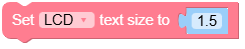
Set the size of the text.
- Parameters:
size (int) – desired text size
UiFlow2 Code Block:
MicroPython Code Block:
Display.setTextSize(2)
- setCursor(x, y)
Set the cursor position.
- Parameters:
UiFlow2 Code Block:

MicroPython Code Block:
Display.setCursor(10, 20)
- clear(color)
Clear the display with a specific color.
- Parameters:
color (int) – fill color in RGB888 format (default 0)
UiFlow2 Code Block:

MicroPython Code Block:
Display.clear(0xFFFFFF)
- fillScreen(color)
Fill the entire screen with a specified color.
- Parameters:
color (int) – fill color in RGB888 format (default 0)
UiFlow2 Code Block:

MicroPython Code Block:
Display.fillScreen(0xFF0000)
- drawPixel(x, y, color)
Draw a single pixel on the screen.
- Parameters:
UiFlow2 Code Block:

MicroPython Code Block:
Display.drawPixel(50, 50, 0x00FF00)
- drawCircle(x, y, r, color)
Draw an outline of a circle.
- Parameters:
UiFlow2 Code Block:

MicroPython Code Block:
Display.drawCircle(60, 60, 20, 0x0000FF)
- fillCircle(x, y, r, color)
Draw a filled circle.
- Parameters:
UiFlow2 Code Block:

MicroPython Code Block:
Display.fillCircle(60, 60, 20, 0x00FFFF)
- drawEllipse(x, y, rx, ry, color)
Draw an outline of an ellipse.
- Parameters:
UiFlow2 Code Block:

MicroPython Code Block:
Display.drawEllipse(80, 40, 30, 20, 0xFF00FF)
- fillEllipse(x, y, rx, ry, color)
Draw a filled ellipse.
- Parameters:
UiFlow2 Code Block:

MicroPython Code Block:
Display.fillEllipse(80, 40, 30, 20, 0x00FF00)
- drawLine(x0, y0, x1, y1, color)
Draw a line.
- Parameters:
UiFlow2 Code Block:

MicroPython Code Block:
Display.drawLine(10, 10, 100, 100, 0xFF0000)
- drawRect(x, y, w, h, color)
Draw a rectangle.
- Parameters:
UiFlow2 Code Block:

MicroPython Code Block:
display.drawRect(20, 20, 80, 50, 0x00FF00)
- fillRect(x, y, w, h, color)
Draw a filled rectangle.
- Parameters:
UiFlow2 Code Block:

MicroPython Code Block:
Display.fillRect(20, 20, 80, 50, 0x0000FF)
- drawRoundRect(x, y, w, h, r, color)
Draw a rounded rectangle.
- Parameters:
UiFlow2 Code Block:

MicroPython Code Block:
Display.drawRoundRect(30, 30, 60, 40, 10, 0xFF00FF)
- fillRoundRect(x, y, w, h, r, color)
Draw a filled rounded rectangle.
- Parameters:
UiFlow2 Code Block:

MicroPython Code Block:
Display.fillRoundRect(30, 30, 60, 40, 10, 0x00FFFF)
- drawTriangle(x0, y0, x1, y1, x2, y2, color)
Draw a triangle.
- Parameters:
x0 (int) – first vertex x-coordinate (default -1)
y0 (int) – first vertex y-coordinate (default -1)
x1 (int) – second vertex x-coordinate (default -1)
y1 (int) – second vertex y-coordinate (default -1)
x2 (int) – third vertex x-coordinate (default -1)
y2 (int) – third vertex y-coordinate (default -1)
color (int) – triangle color in RGB888 format (default 0)
UiFlow2 Code Block:

MicroPython Code Block:
Display.drawTriangle(10, 10, 50, 80, 90, 10, 0xFF0000)
- fillTriangle(x0, y0, x1, y1, x2, y2, color)
Draw a filled triangle.
- Parameters:
x0 (int) – first vertex x-coordinate (default -1)
y0 (int) – first vertex y-coordinate (default -1)
x1 (int) – second vertex x-coordinate (default -1)
y1 (int) – second vertex y-coordinate (default -1)
x2 (int) – third vertex x-coordinate (default -1)
y2 (int) – third vertex y-coordinate (default -1)
color (int) – fill color in RGB888 format (default 0)
UiFlow2 Code Block:

MicroPython Code Block:
Display.fillTriangle(10, 10, 50, 80, 90, 10, 0x00FF00)
- drawArc(x, y, r0, r1, angle0, angle1, color)
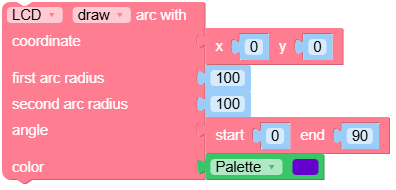
Draw an arc.
- Parameters:
x (int) – center x-coordinate (default -1)
y (int) – center y-coordinate (default -1)
r0 (int) – first radius (default -1)
r1 (int) – second radius (default -1)
angle0 (int) – starting angle in degrees (default -1)
angle1 (int) – ending angle in degrees (default -1)
color (int) – arc color in RGB888 format (default 0)
UiFlow2 Code Block:
MicroPython Code Block:
Display.drawArc(50, 50, 20, 30, 0, 180, 0xFF0000)
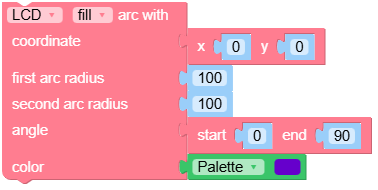
- fillArc(x, y, r0, r1, angle0, angle1, color)
Draw a filled arc.
- Parameters:
x (int) – center x-coordinate (default -1)
y (int) – center y-coordinate (default -1)
r0 (int) – first radius (default -1)
r1 (int) – second radius (default -1)
angle0 (int) – starting angle in degrees (default -1)
angle1 (int) – ending angle in degrees (default -1)
color (int) – fill color in RGB888 format (default 0)
UiFlow2 Code Block:
MicroPython Code Block:
Display.fillArc(50, 50, 20, 30, 0, 180, 0x00FF00)
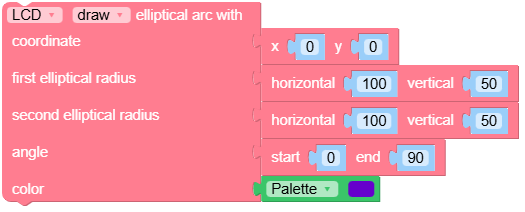
- drawEllipseArc(x, y, r0x, r1x, r0y, r1y, angle0, angle1, color)
Draw an elliptical arc.
- Parameters:
x (int) – center x-coordinate (default -1)
y (int) – center y-coordinate (default -1)
r0x (int) – first horizontal radius (default -1)
r1x (int) – second horizontal radius (default -1)
r0y (int) – first vertical radius (default -1)
r1y (int) – second vertical radius (default -1)
angle0 (int) – starting angle in degrees (default -1)
angle1 (int) – ending angle in degrees (default 0)
color (int) – arc color in RGB888 format (default 0)
UiFlow2 Code Block:
MicroPython Code Block:
Display.drawEllipseArc(50, 50, 20, 40, 10, 30, 0, 180, 0xFF00FF)
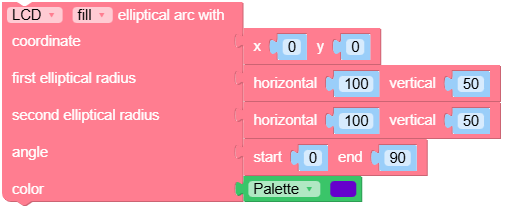
- fillEllipseArc(x, y, r0x, r1x, r0y, r1y, angle0, angle1, color)
Draw a filled elliptical arc.
- Parameters:
x (int) – center x-coordinate (default -1)
y (int) – center y-coordinate (default -1)
r0x (int) – first horizontal radius (default -1)
r1x (int) – second horizontal radius (default -1)
r0y (int) – first vertical radius (default -1)
r1y (int) – second vertical radius (default -1)
angle0 (int) – starting angle in degrees (default -1)
angle1 (int) – ending angle in degrees (default 0)
color (int) – fill color in RGB888 format (default 0)
UiFlow2 Code Block:
MicroPython Code Block:
Display.fillEllipseArc(50, 50, 20, 40, 10, 30, 0, 180, 0x00FFFF)
- drawQR(text, x, y, w, version)
Draw a QR code.
- Parameters:
UiFlow2 Code Block:

MicroPython Code Block:
Display.drawQR("Hello", 0, 0, 200)
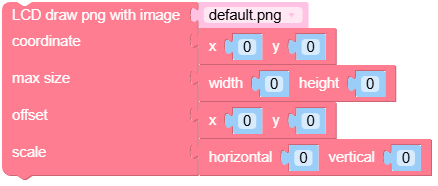
- drawPng(img, x, y, maxW, maxH, offX, offY, scaleX, scaleY)
Draw a PNG image.
- Parameters:
img (str) – image path or data
x (int) – display x-coordinate (default 0)
y (int) – display y-coordinate (default 0)
maxW (int) – max width to draw (default 0)
maxH (int) – max height to draw (default 0)
offX (int) – x-offset in image (default 0)
offY (int) – y-offset in image (default 0)
scaleX (bool) – scale horizontally (default True)
scaleY (bool) – scale vertically (default False)
UiFlow2 Code Block:
MicroPython Code Block:
Display.drawPng("res/img/uiflow.png", 0, 0)
Example:
Display.drawPng("res/img/uiflow.png", 0, 0)
img = open("res/img/uiflow.png", "b")
img.seek(0)
Display.drawPng(img.read(), 0, 100)
img.close()
- drawJpg(img, x, y, maxW, maxH, offX, offY)
Draw a JPG image.
- Parameters:
UiFlow2 Code Block:

MicroPython Code Block:
Display.drawJpg("res/img/uiflow.jpg", 0, 0)
Example:
Display.drawJpg("res/img/uiflow.jpg", 0, 0)
img = open("res/img/uiflow.jpg", "b")
img.seek(0)
Display.drawJpg(img.read(), 0, 100)
img.close()
- drawBmp(img, x, y, maxW, maxH, offX, offY)
Draw a BMP image.
- Parameters:
UiFlow2 Code Block:

MicroPython Code Block:
Display.drawBmp("res/img/uiflow.bmp", 0, 0)
Example:
Display.drawBmp("res/img/uiflow.bmp", 0, 0)
img = open("res/img/uiflow.bmp", "b")
img.seek(0)
Display.drawBmp(img.read(), 0, 100)
img.close()
- drawImage(img, x, y, maxW, maxH, offX, offY)
Draw an image.
- Parameters:
UiFlow2 Code Block:
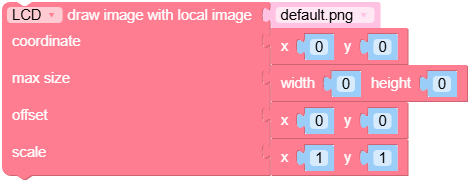
MicroPython Code Block:
img = open("res/img/uiflow.jpg", "b")
Example:
img = open("res/img/uiflow.jpg", "b")
img.seek(0)
Display.drawImage(img.read(), 0, 0)
img.close()
- drawRawBuf(buf, x, y, w, h, len, swap)
Draw an image from raw buffer data.
- Parameters:
UiFlow2 Code Block:
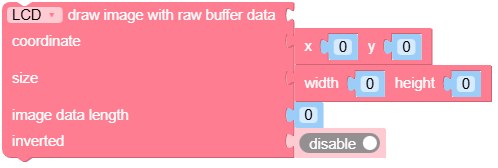
MicroPython Code Block:
Display.drawRawBuf(raw_buf, 0, 0, 100, 100, len(raw_buf), swap=False)
Example:
width, height = 40, 30
green565 = 0x07E0
raw_buf = bytearray(width * height * 2)
for i in range(width * height):
    raw_buf[2*i]   = (green565 >> 8) & 0xFF
    raw_buf[2*i+1] = green565 & 0xFF
Display.drawRawBuf(raw_buf, 100, 100, width, height, len(raw_buf), swap=False)
- print(text, color)
Display a string (no formatting support).
UiFlow2 Code Block:

MicroPython Code Block:
Display.print("Hello World", color=0xFF0000)
- printf(text)
Display a formatted string.
- Parameters:
text (str) – text to display with formatting
UiFlow2 Code Block:

MicroPython Code Block:
Display.printf("Value: %d" % 100)
- newCanvas(w, h, bpp, psram)
Create a canvas.
- Parameters:
- Returns:
created canvas object
UiFlow2 Code Block:
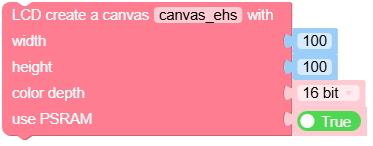
MicroPython Code Block:
w1 = Display.newCanvas(w=100, h=100, bpp=16)
Example:
w1 = Display.newCanvas(w=100, h=100, bpp=16)
w1.drawImage("res/img/uiflow.jpg", 80, 0)
w1.push(30, 0)
- startWrite()
Start writing to the display.
UiFlow2 Code Block:
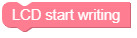
MicroPython Code Block:
Display.startWrite()
Example:
Display.startWrite()
Display.drawPixel(10, 10, 0xFF0000)
Display.endWrite()
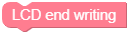
- endWrite()
End writing to the display.
UiFlow2 Code Block:
MicroPython Code Block:
Display.endWrite()