DualKey
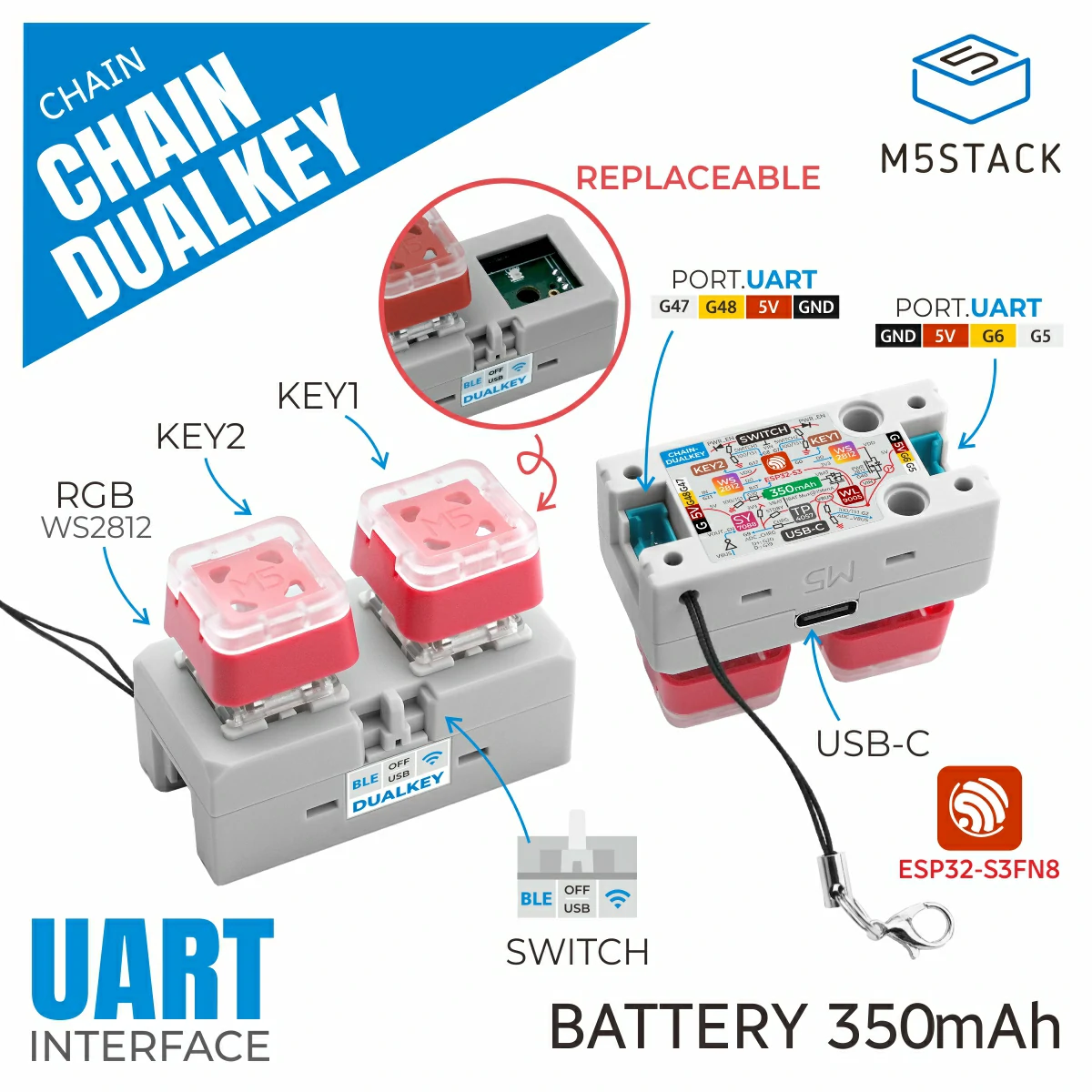
Support the following products:
UiFlow2 Example
Button LED Control
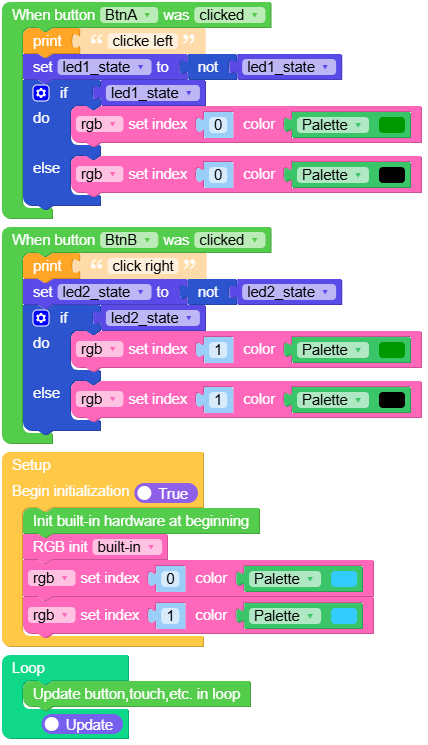
Open the dualkey_button_led_example.m5f2 project in UiFlow2.
This example demonstrates button callback functions to toggle RGB LEDs. When the left button (BtnA) is clicked, it toggles the left RGB LED (LED 0). When the right button (BtnB) is clicked, it toggles the right RGB LED (LED 1).
UiFlow2 Code Block:
Example output:
None
Power Detection
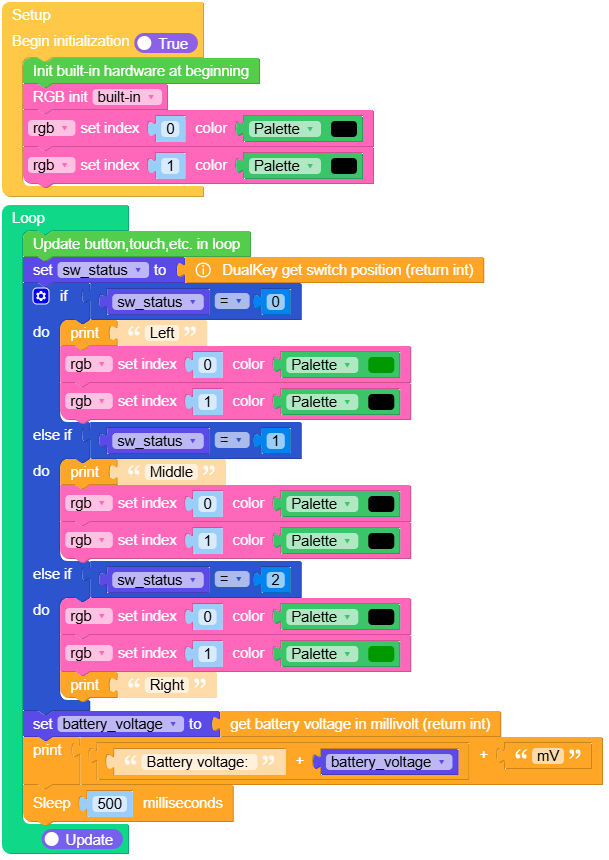
Open the dualkey_power_detection_example.m5f2 project in UiFlow2.
This example demonstrates battery voltage monitoring and switch position detection. It reads the switch position (left/middle/right) and displays corresponding RGB LED colors, while also periodically reading and displaying the battery voltage in millivolts.
UiFlow2 Code Block:
Example output:
None
USB Mouse
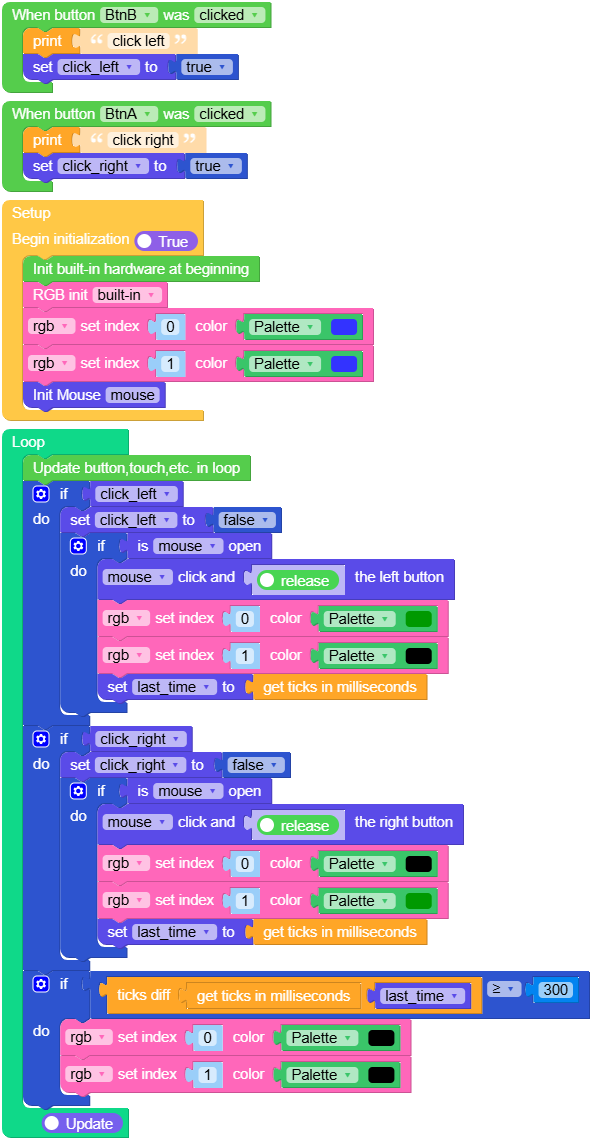
Open the dualkey_usb_mouse_example.m5f2 project in UiFlow2.
This example demonstrates USB HID mouse functionality with button-triggered clicks. When the left button (BtnA) is clicked, it sends a left mouse click and lights up the left RGB LED. When the right button (BtnB) is clicked, it sends a right mouse click and lights up the right RGB LED. The LEDs automatically turn off after 300ms.
UiFlow2 Code Block:
Example output:
None
MicroPython Example
Button LED Control
This example demonstrates button callback functions to toggle RGB LEDs. When the left button (BtnA) is clicked, it toggles the left RGB LED (LED 0). When the right button (BtnB) is clicked, it toggles the right RGB LED (LED 1).
MicroPython Code Block:
 1# SPDX-FileCopyrightText: 2025 M5Stack Technology CO LTD
 2#
 3# SPDX-License-Identifier: MIT
 4
 5import os, sys, io
 6import M5
 7from M5 import *
 8from hardware import RGB
 9
10
11rgb = None
12led1_state = None
13led2_state = None
14
15
16def btnb_was_clicked_event(state):
17    global rgb, led1_state, led2_state
18    print("clicke left")
19    led1_state = not led1_state
20    if led1_state:
21        rgb.set_color(0, 0x009900)
22    else:
23        rgb.set_color(0, 0x000000)
24
25
26def btna_was_clicked_event(state):
27    global rgb, led1_state, led2_state
28    print("click right")
29    led2_state = not led2_state
30    if led2_state:
31        rgb.set_color(1, 0x009900)
32    else:
33        rgb.set_color(1, 0x000000)
34
35
36def setup():
37    global rgb, led1_state, led2_state
38
39    M5.begin()
40    BtnA.setCallback(type=BtnA.CB_TYPE.WAS_CLICKED, cb=btna_was_clicked_event)
41    BtnB.setCallback(type=BtnB.CB_TYPE.WAS_CLICKED, cb=btnb_was_clicked_event)
42
43    rgb = RGB()
44    rgb.set_color(0, 0x33CCFF)
45    rgb.set_color(1, 0x33CCFF)
46
47
48def loop():
49    global rgb, led1_state, led2_state
50    M5.update()
51
52
53if __name__ == "__main__":
54    try:
55        setup()
56        while True:
57            loop()
58    except (Exception, KeyboardInterrupt) as e:
59        try:
60            from utility import print_error_msg
61
62            print_error_msg(e)
63        except ImportError:
64            print("please update to latest firmware")
Example output:
None
Power Detection
This example demonstrates battery voltage monitoring and switch position detection. It reads the switch position (left/middle/right) and displays corresponding RGB LED colors, while also periodically reading and displaying the battery voltage in millivolts.
MicroPython Code Block:
 1# SPDX-FileCopyrightText: 2025 M5Stack Technology CO LTD
 2#
 3# SPDX-License-Identifier: MIT
 4
 5import os, sys, io
 6import M5
 7from M5 import *
 8from hardware import RGB
 9from hardware import dualkey
10import time
11
12
13rgb = None
14sw_status = None
15battery_voltage = None
16
17
18def setup():
19    global rgb, sw_status, battery_voltage
20    M5.begin()
21    rgb = RGB()
22    rgb.set_color(0, 0x000000)
23    rgb.set_color(1, 0x000000)
24
25
26def loop():
27    global rgb, sw_status, battery_voltage
28    M5.update()
29    sw_status = dualkey.get_switch_position()
30    if sw_status == 0:
31        print("Left")
32        rgb.set_color(0, 0x009900)
33        rgb.set_color(1, 0x000000)
34    elif sw_status == 1:
35        print("Middle")
36        rgb.set_color(0, 0x000000)
37        rgb.set_color(1, 0x000000)
38    elif sw_status == 2:
39        rgb.set_color(0, 0x000000)
40        rgb.set_color(1, 0x009900)
41        print("Right")
42    battery_voltage = dualkey.get_battery_voltage()
43    print((str((str("Battery voltage: ") + str(battery_voltage))) + str("mV")))
44    time.sleep_ms(500)
45
46
47if __name__ == "__main__":
48    try:
49        setup()
50        while True:
51            loop()
52    except (Exception, KeyboardInterrupt) as e:
53        try:
54            from utility import print_error_msg
55
56            print_error_msg(e)
57        except ImportError:
58            print("please update to latest firmware")
Example output:
None
USB Mouse
This example demonstrates USB HID mouse functionality with button-triggered clicks. When the left button (BtnA) is clicked, it sends a left mouse click and lights up the left RGB LED. When the right button (BtnB) is clicked, it sends a right mouse click and lights up the right RGB LED. The LEDs automatically turn off after 300ms.
Note
When USB mouse is initialized, the USB-CDC REPL may disconnect. You may need to reconnect to the device after running this example.
MicroPython Code Block:
 1# SPDX-FileCopyrightText: 2025 M5Stack Technology CO LTD
 2#
 3# SPDX-License-Identifier: MIT
 4import os, sys, io
 5import M5
 6from M5 import *
 7from hardware import RGB
 8from usb.device.mouse import Mouse
 9import time
10
11
12rgb = None
13mouse = None
14click_left = None
15click_right = None
16last_time = None
17
18
19def btnb_was_clicked_event(state):
20    global rgb, mouse, click_left, click_right, last_time
21    print("click left")
22    click_left = True
23
24
25def btna_was_clicked_event(state):
26    global rgb, mouse, click_left, click_right, last_time
27    print("click right")
28    click_right = True
29
30
31def setup():
32    global rgb, mouse, click_left, click_right, last_time
33
34    M5.begin()
35    BtnA.setCallback(type=BtnA.CB_TYPE.WAS_CLICKED, cb=btna_was_clicked_event)
36    BtnB.setCallback(type=BtnB.CB_TYPE.WAS_CLICKED, cb=btnb_was_clicked_event)
37
38    rgb = RGB()
39    rgb.set_color(0, 0x3333FF)
40    rgb.set_color(1, 0x3333FF)
41    mouse = Mouse()
42
43
44def loop():
45    global rgb, mouse, click_left, click_right, last_time
46    M5.update()
47    if click_left:
48        click_left = False
49        if mouse.is_open():
50            mouse.click_left(True)
51            rgb.set_color(0, 0x009900)
52            rgb.set_color(1, 0x000000)
53            last_time = time.ticks_ms()
54    if click_right:
55        click_right = False
56        if mouse.is_open():
57            mouse.click_right(True)
58            rgb.set_color(0, 0x000000)
59            rgb.set_color(1, 0x009900)
60    if (time.ticks_diff((time.ticks_ms()), last_time)) >= 300:
61        rgb.set_color(0, 0x000000)
62        rgb.set_color(1, 0x000000)
63
64
65if __name__ == "__main__":
66    try:
67        setup()
68        while True:
69            loop()
70    except (Exception, KeyboardInterrupt) as e:
71        try:
72            from utility import print_error_msg
73
74            print_error_msg(e)
75        except ImportError:
76            print("please update to latest firmware")
Example output:
None
API
class DualKey
- class hardware.dualkey.DualKey
DualKey module - voltage and switch detection (singleton).
The DualKey class is a singleton that provides methods to monitor battery voltage, VBUS voltage, charging status, and switch position.
MicroPython Code Block:
from hardware import dualkey
- get_battery_voltage()
Get battery voltage.
- Returns:
Battery voltage value in millivolts (mV).
- Return type:
UiFlow2 Code Block:

MicroPython Code Block:
voltage = dualkey.get_battery_voltage()
print(f"Battery voltage: {voltage} mV")
- get_vbus_voltage()
Get VBUS(USB power) voltage.
- Returns:
VBUS voltage value in millivolts (mV).
- Return type:
UiFlow2 Code Block:

MicroPython Code Block:
vbus_voltage = dualkey.get_vbus_voltage()
print(f"VBUS voltage: {vbus_voltage} mV")
- is_charging()
Check if the device is charging.
- Returns:
Returns True if charging, False if not charging.
- Return type:
UiFlow2 Code Block:

MicroPython Code Block:
if dualkey.is_charging():
    print("Device is charging")
else:
    print("Device is not charging")
- get_switch_position()
Get switch position.
- Returns:
Switch position value: -
0: left -1: middle -2: right- Return type:
UiFlow2 Code Block:

MicroPython Code Block:
position = dualkey.get_switch_position()
if position == 0:
    print("Switch position: left")
elif position == 1:
    print("Switch position: middle")
elif position == 2:
    print("Switch position: right")